Discover and monitor content

Inoreader isn’t just a place to follow your favorite feeds. For Pro users, it’s also a powerful tool for searching, filtering, and continuously monitoring content across the web and within your own account. In this first post of our Pro onboarding series, we’ll walk you through the advanced search and monitoring features that will help you stay on top of the information you care about.
Global search
Search in the tab bar lets you look for articles within your own account or across all public feeds in Inoreader. Global search is a Pro feature that gives you access to millions of articles from feeds you don’t necessarily follow. Using advanced filters and search operators, you can find precise, relevant results at scale.
Start by choosing the scope of your search – popular sites, the most popular sites, or all publicly available sites indexed by Inoreader. You can also search within our curated featured collections, which group feeds by topic, from general news and technology to finance, sports, and industry insights.
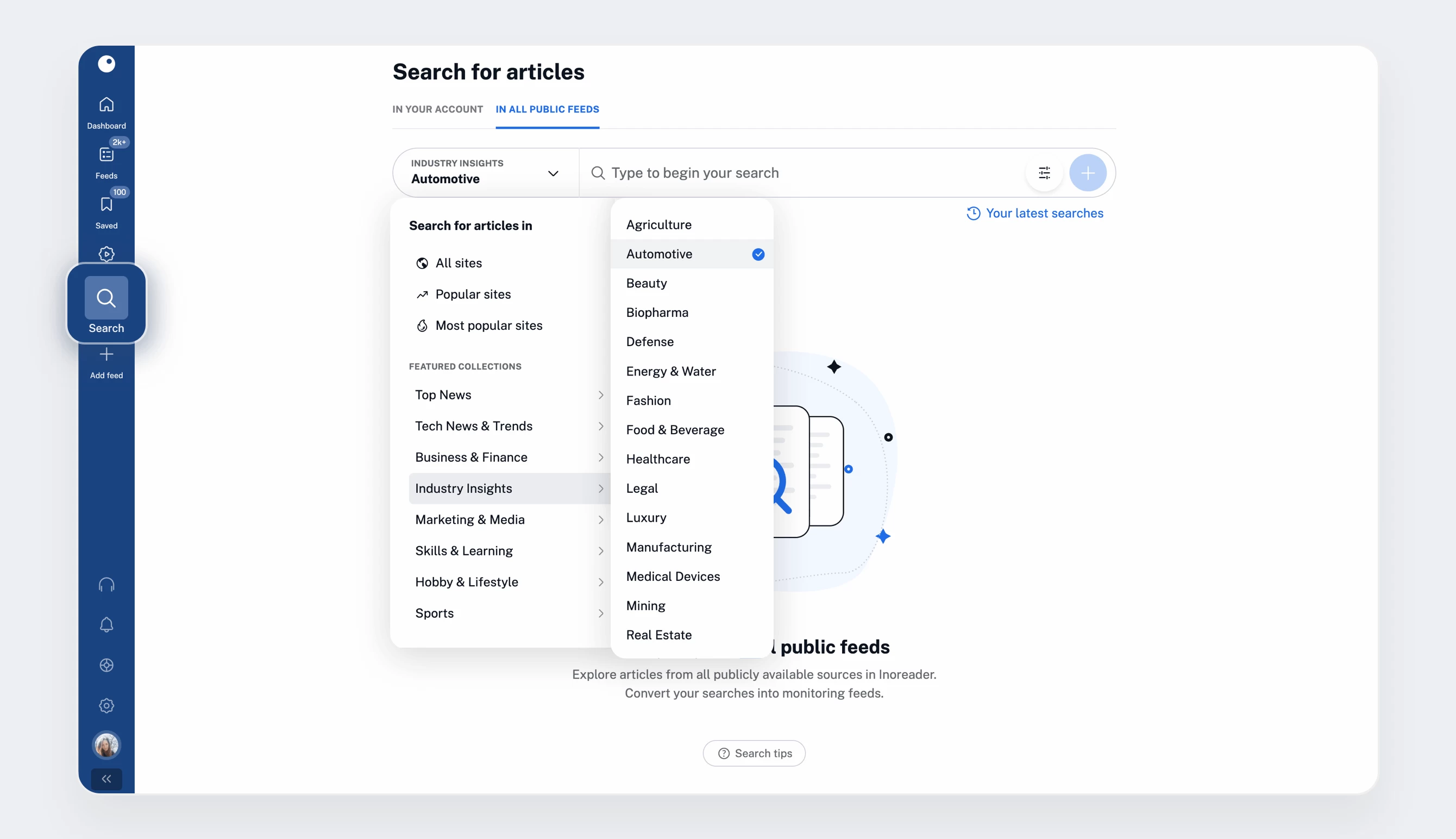
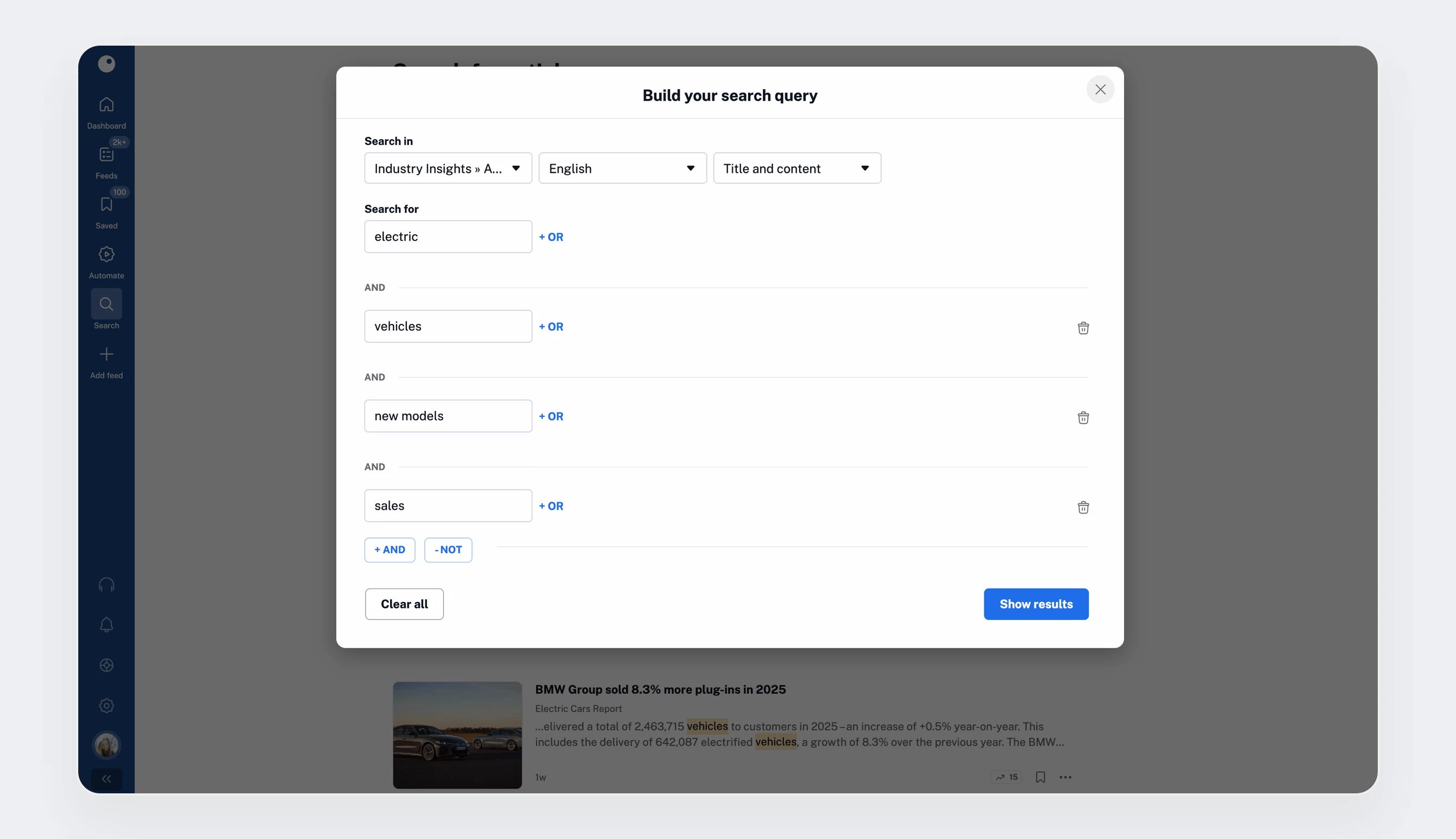
Once you’ve selected the scope, type your search and press Enter. You can use a simple keyword or name, or build a more complex query with our query builder. From there, you can:
- Choose the language of the articles.
- Decide whether to search in titles and content, titles only, or content only.
- Include, exclude, or combine keywords and phrases using AND / OR / NOT.
When your query is ready, click Show results to see what Inoreader finds.
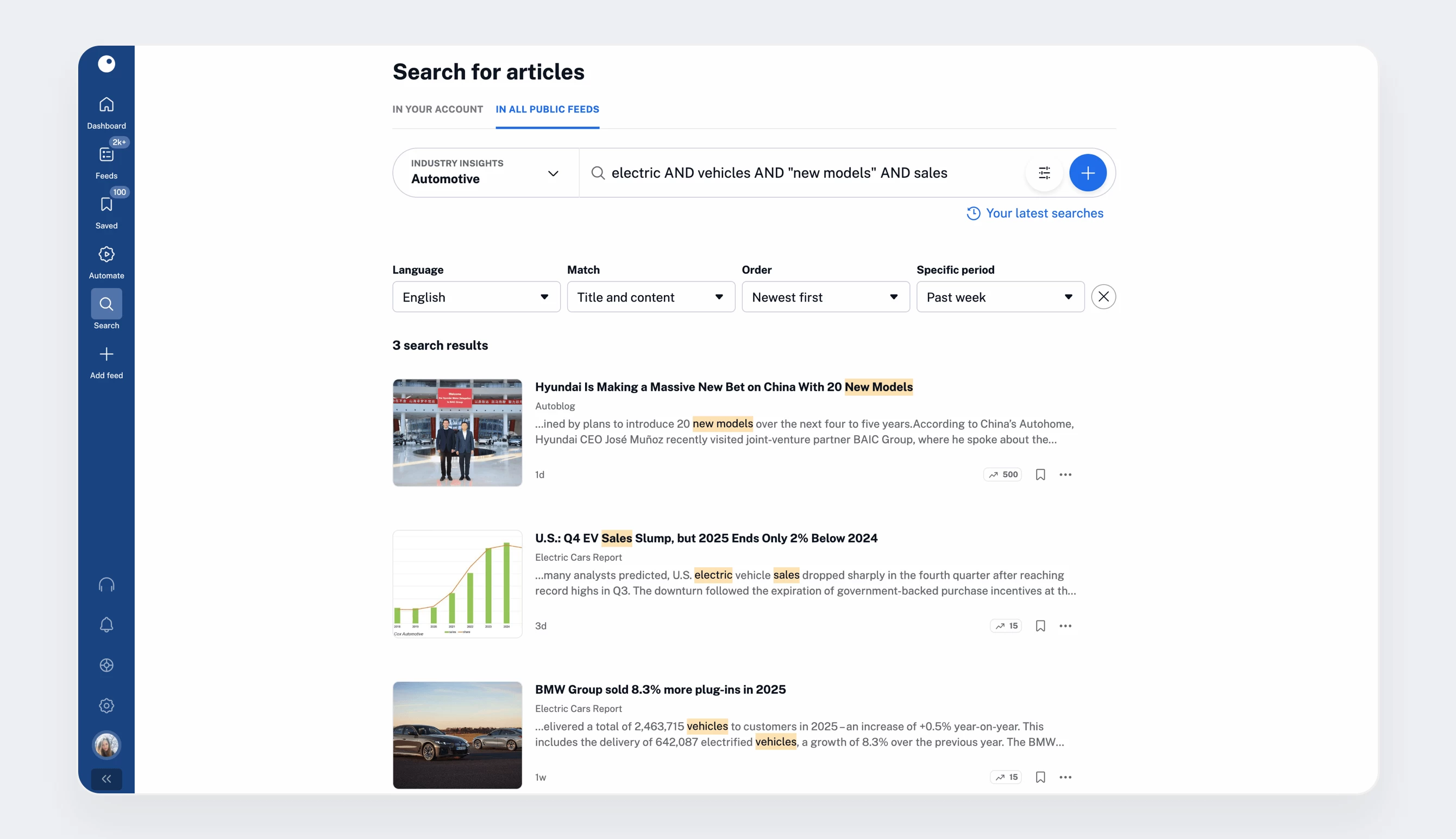
From the results view, you can read articles instantly, save them for later, add them to your listening queue, add notes, and more. You can further fine-tune your results by adjusting filters such as language, match type, order, or time period, or by returning to the query builder to tweak your search terms (you can also edit them directly in the search bar).
Monitoring feeds
Once you’ve built a search query that returns useful results, there’s no need to repeat it manually every day to follow the topic. Monitoring feeds let you turn dynamic search results into a feed you can follow, so new matching articles are delivered directly to your Inoreader account.
After refining your search and filters, simply click the plus (+) button next to your query, give your monitoring feed a name, and create it.
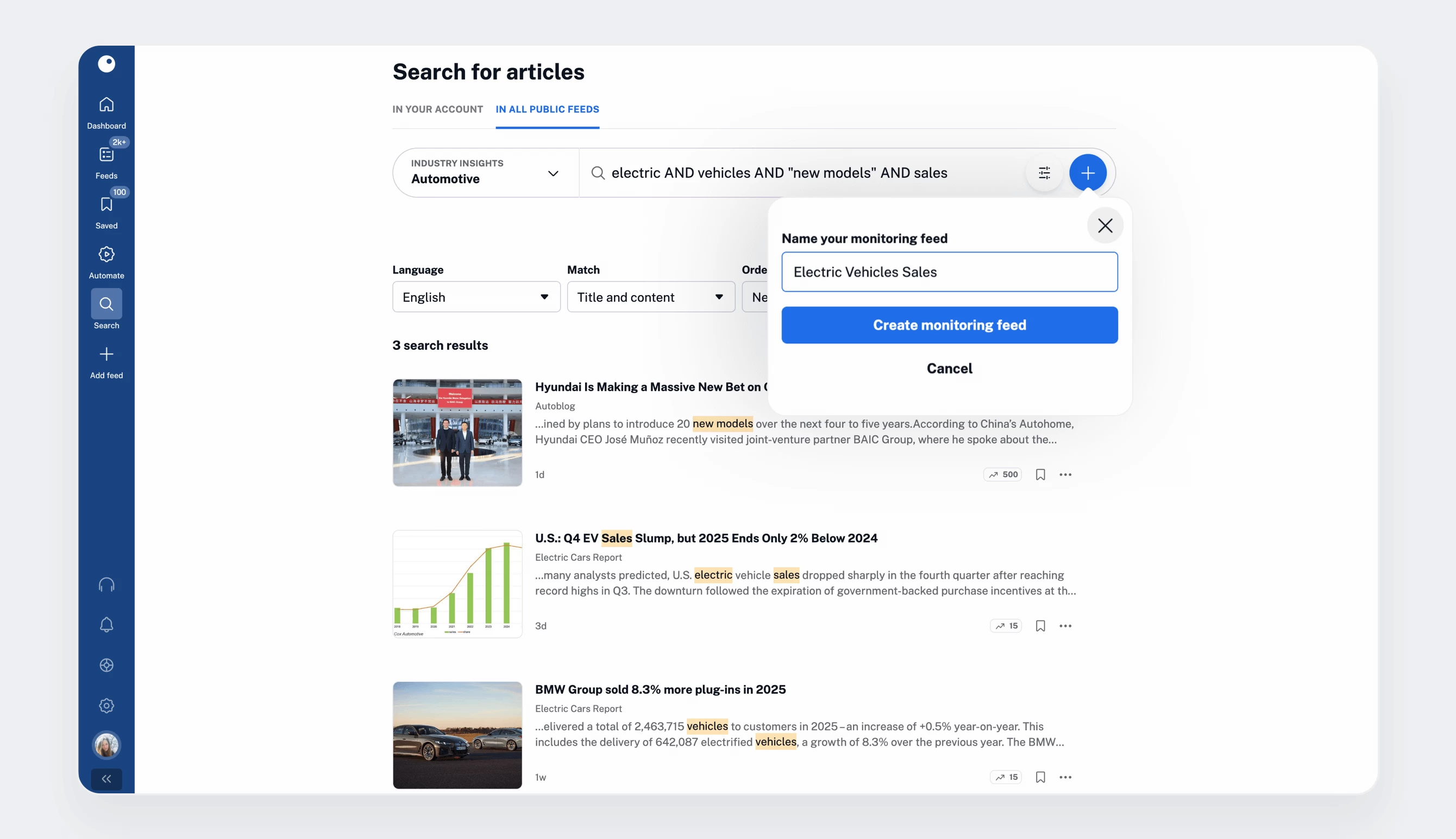
Your new monitoring feed will appear in the sidebar, where you can change its position, put it into folders, rename it, and treat it like any other feed. You can also edit its search query at any time by right-clicking the feed and selecting Edit search query.
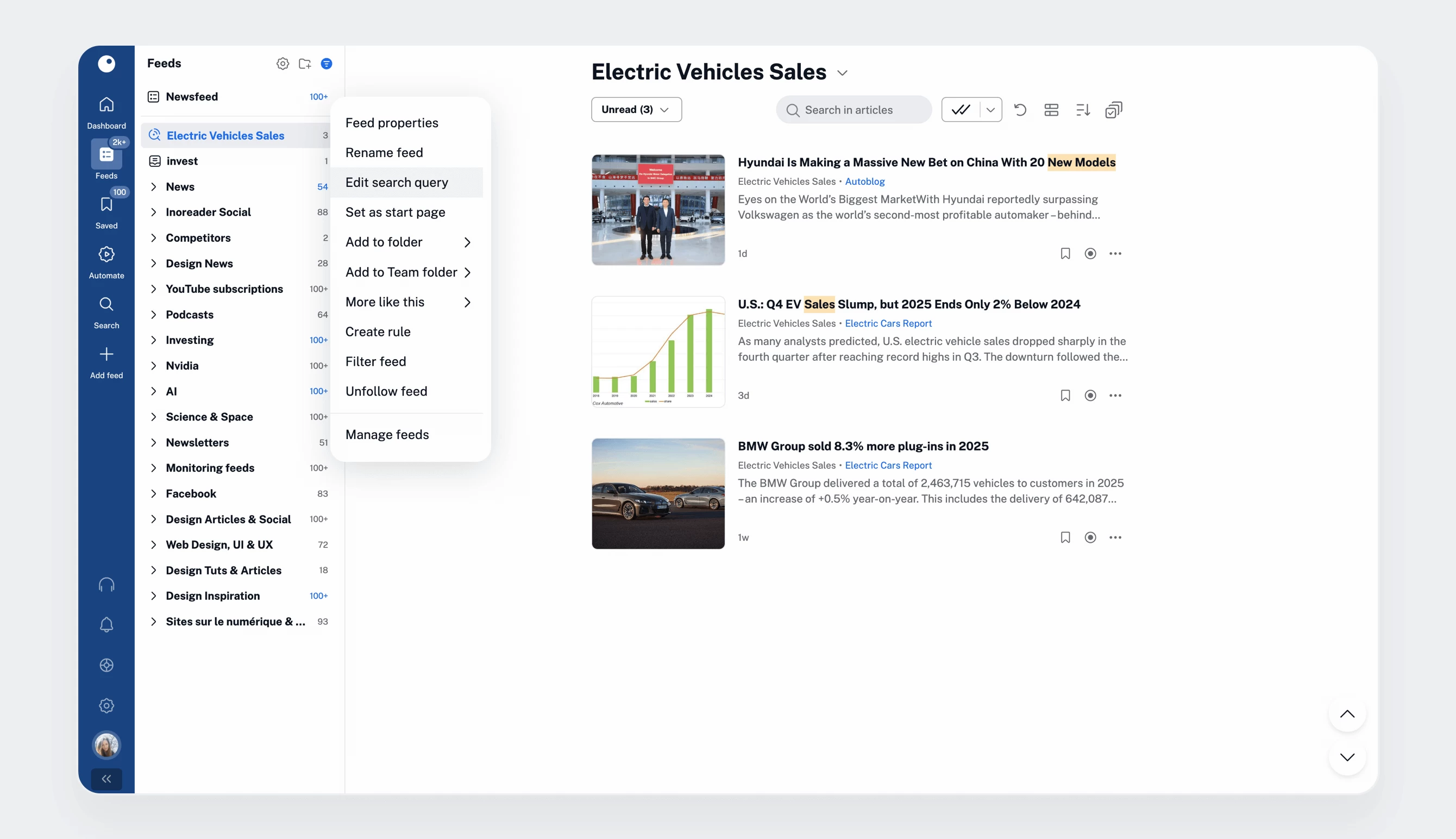
Monitoring feeds don’t have to be based on a Global search alone. You can also use them to track filtered content from your own account. You can run queries on a specific feed, folder, tag, or across your entire Newsfeed, Saved items, annotations, saved web pages, uploads, or Intelligence reports.
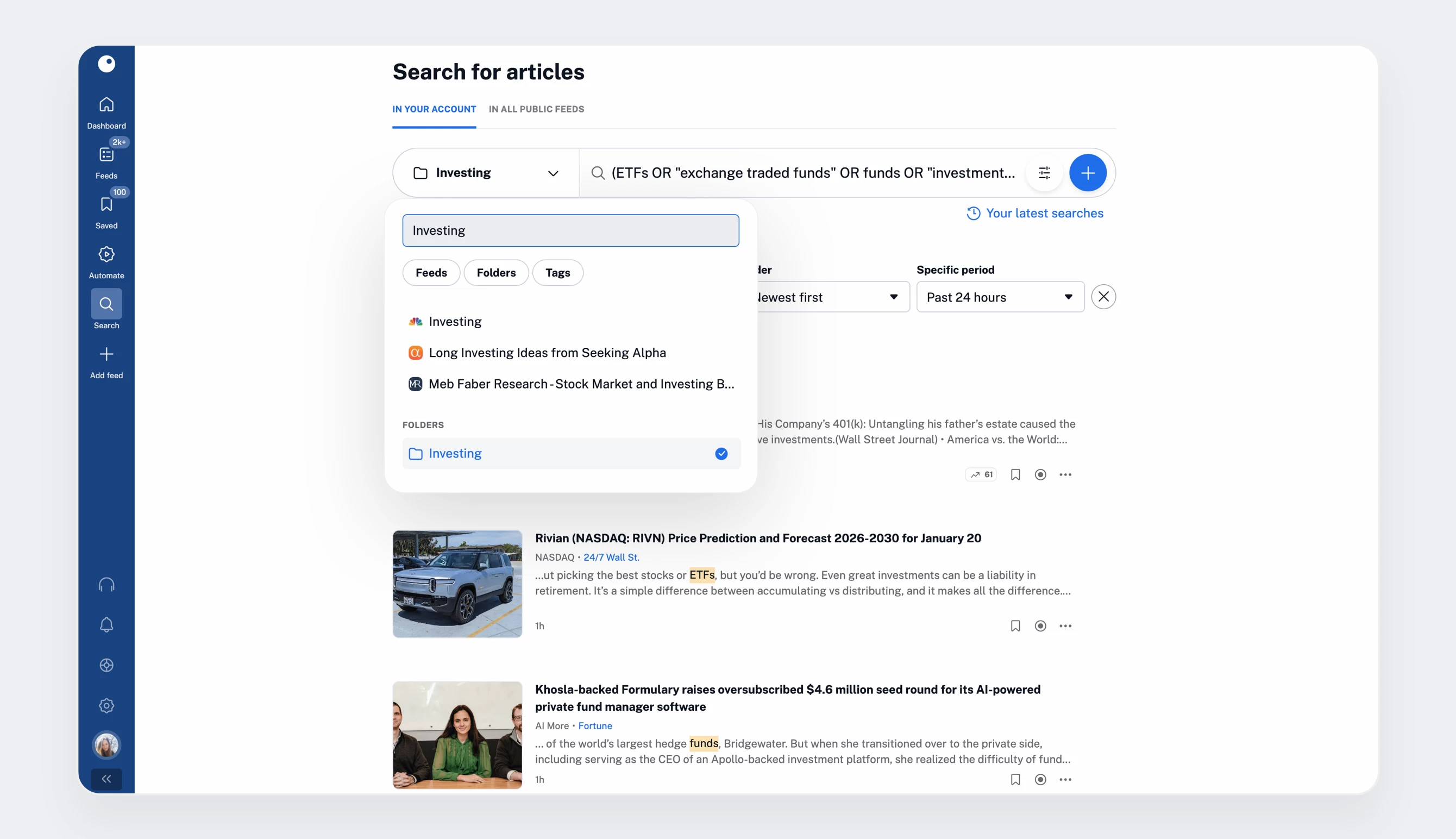
Once you’ve selected the scope and defined your search terms (using the query builder if needed), click the plus (+) button to create your monitoring feed. You can even run multiple monitoring feeds on the same sources in parallel, each with different criteria, to cover different angles or use cases.
Web feeds
Web feeds are another powerful Pro feature for monitoring content across the web – specifically on websites that don’t offer RSS feeds. They allow you to create custom feeds by selecting elements from a web page to follow.
To create a Web feed, go to Add feed in the tab bar and select Web feed from the sidebar. Paste the URL of the page you want to monitor and click Load website. Once the page loads, select the elements you’d like to track to generate your feed.
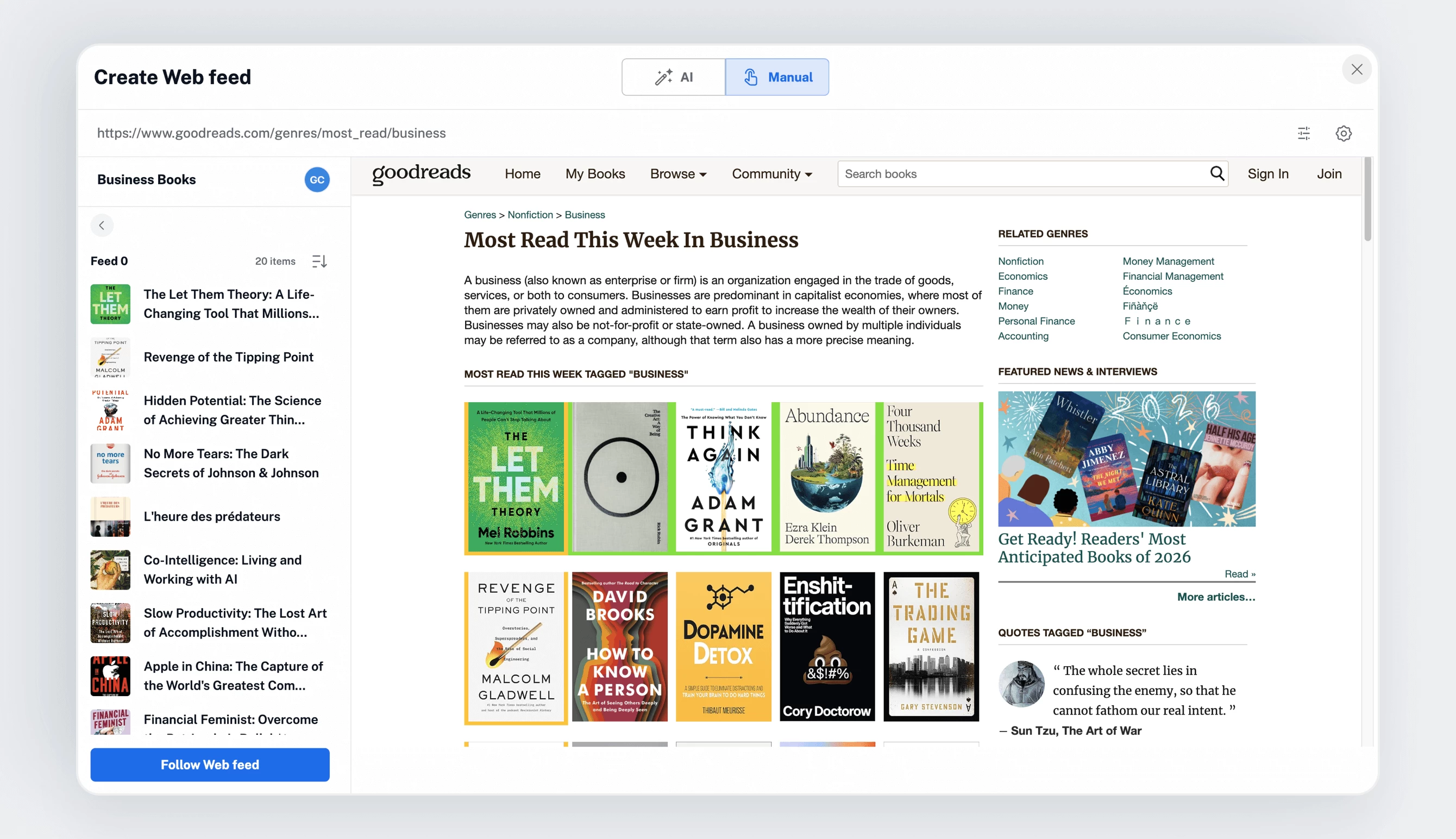
Preview the results, and if everything looks right, save your new feed. Web feeds are great for tracking upcoming events, competitor updates, and much more – all delivered as a regular feed in your account.
Track changes
Track changes does exactly what its name suggests: it monitors selected parts of a web page for visual or textual modifications and notifies you whenever something is updated.
To create a Track changes feed, go to Add feed > Track changes, paste the URL of the page you want to monitor, and click Load web page. Select the area you want to track, adjust your preferences, and click Follow feed. Your new feed will appear in the sidebar alongside your other feeds.
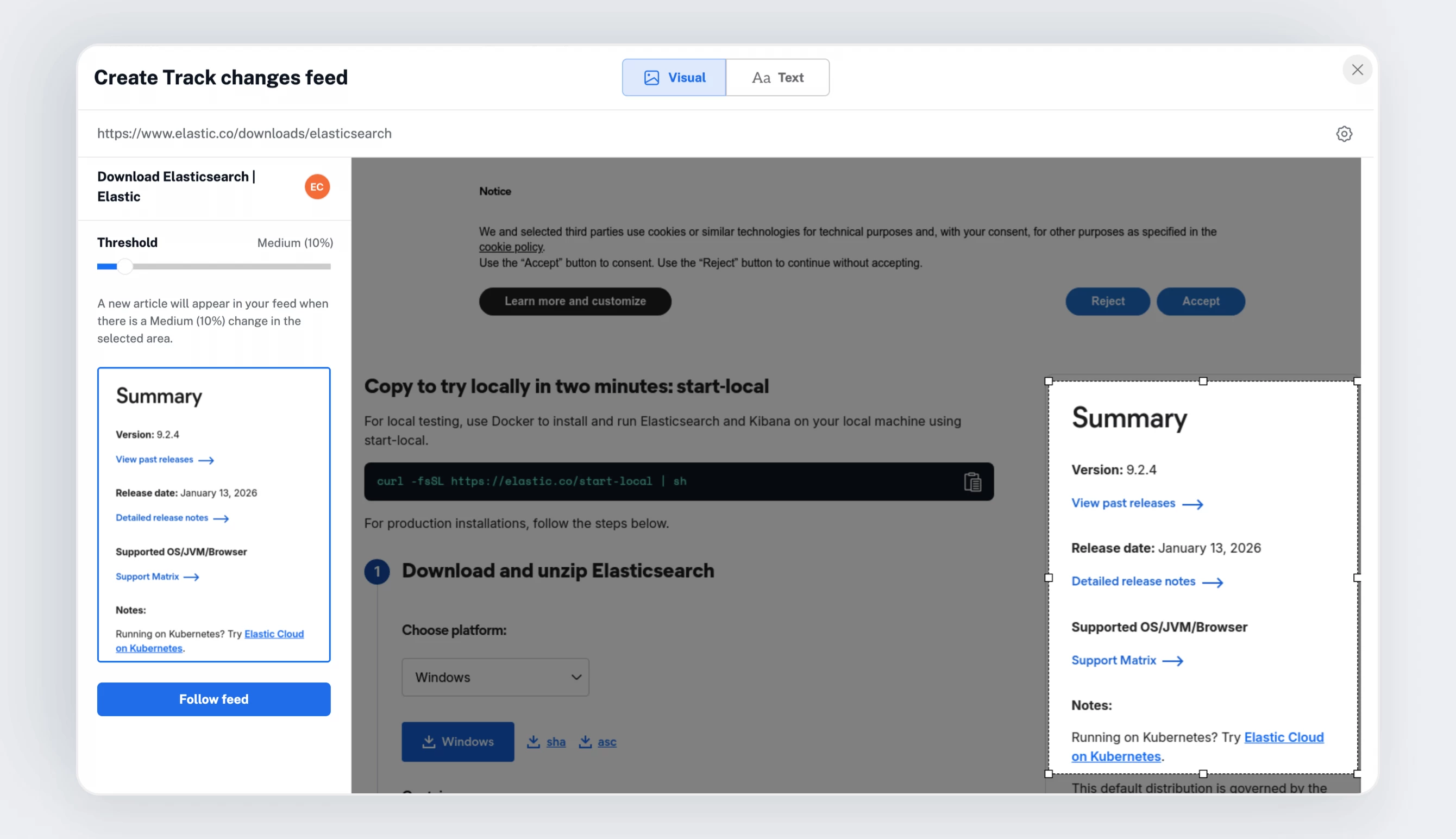
Track changes works similarly to Web feeds and is especially useful for monitoring price updates, product availability, and other page-level updates that don’t come via traditional feeds.
Boosted feeds
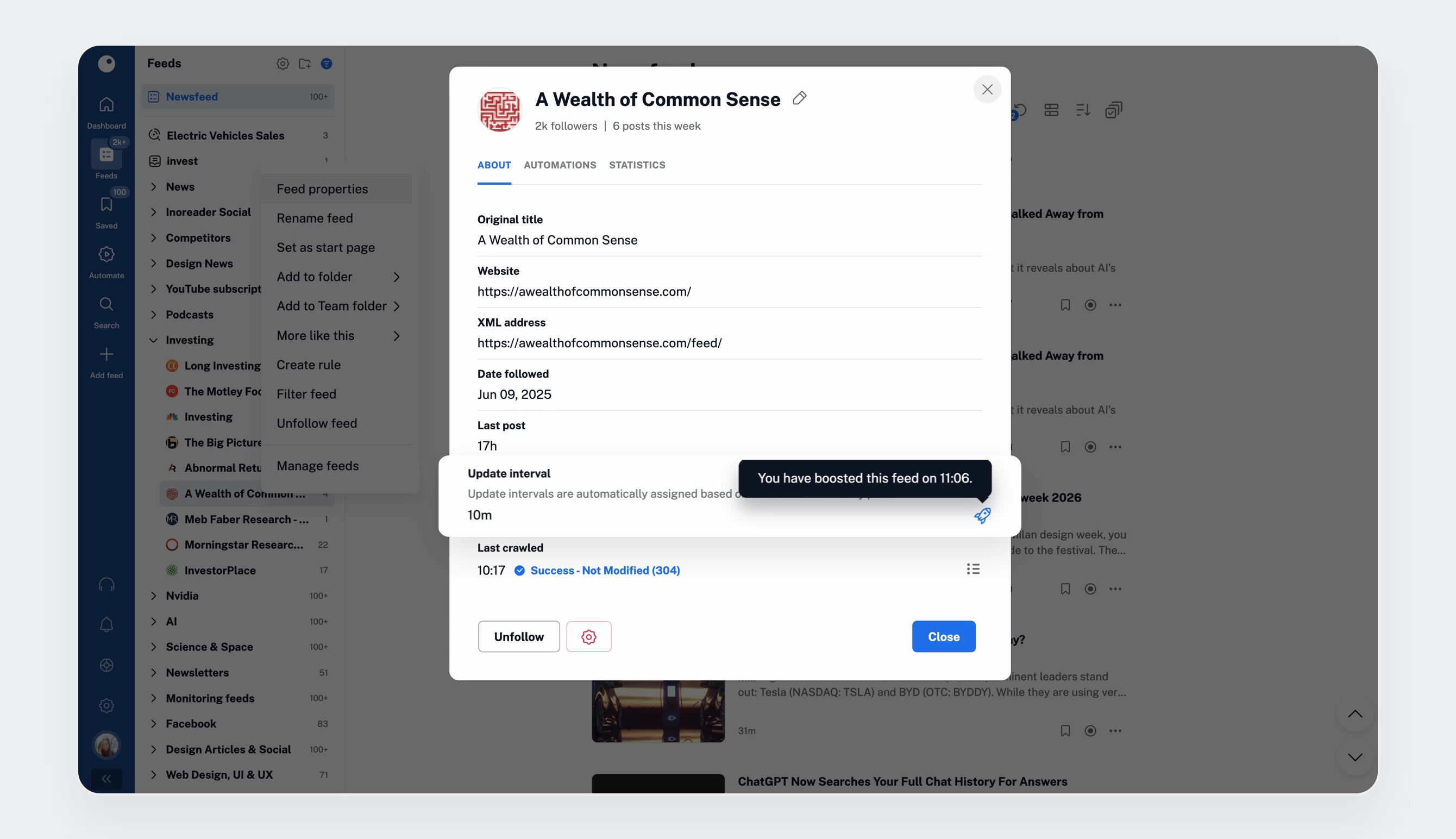
In addition to all monitoring tools, Pro users benefit from a shorter default refresh interval, ensuring their feeds are updated at least once per hour. For sources that are especially important or frequently updated, you can go a step further and boost them.
Boosted feeds refresh every 10 minutes, helping you stay closer to real time when it matters most. It’s a small setting with a big impact for high-priority information. You can enable it from a feed’s properties.
Bringing it all together
Advanced search and monitoring tools turn Inoreader into way more than a feed reader – they make it an active information system that works for you in the background. Whether you’re tracking topics across the web, monitoring your own sources with precision, or watching specific pages for changes, these Pro features help you stay informed with less effort and more control.
In the next post in this series, we’ll build on this and explore the different sources you can follow as a Pro user to complete your content library.