Can I process newsletters with rules and filters?
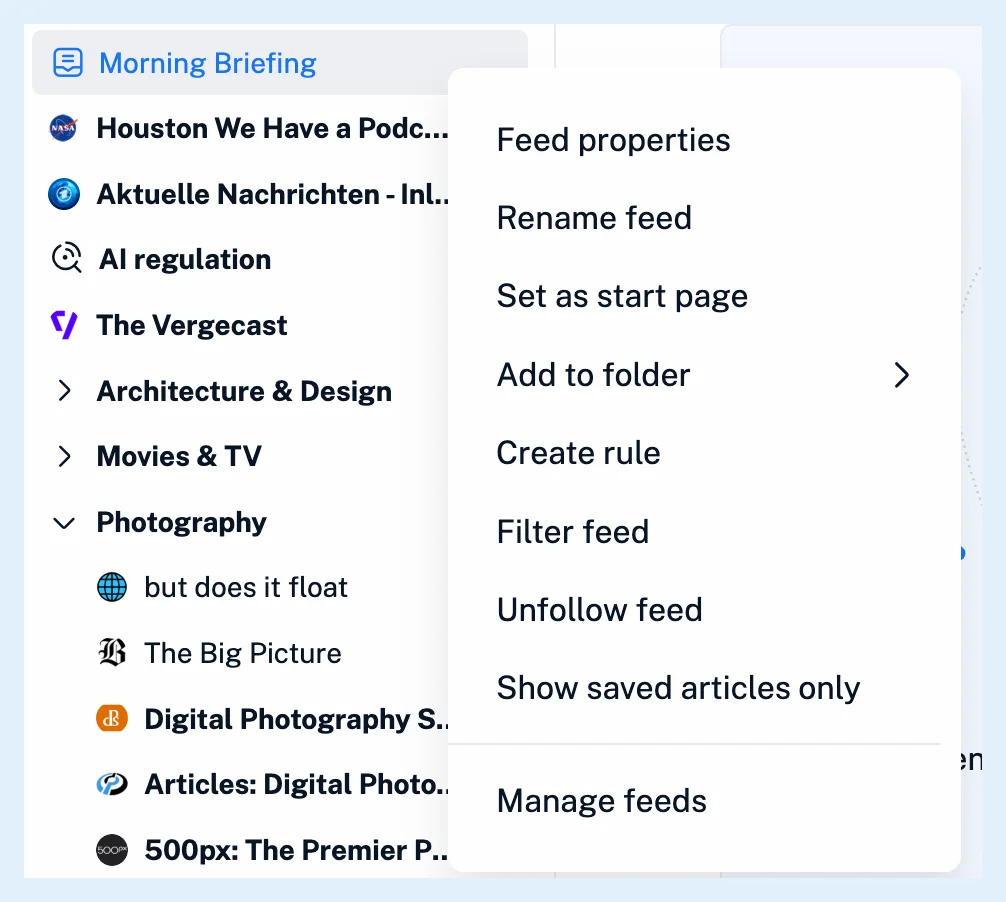
Yes. Each email in a newsletter feed is an ordinary article, so a rule acts on it the moment it arrives and a filter keeps or removes emails by their subject, text or sender. Right-click the newsletter feed and choose Create rule or Filter feed.
Set up a rule or a filter
- Right-click the newsletter feed in the sidebar, or open its menu in the header.
- Choose Create rule to act on new emails, or Filter feed to keep or remove emails that match.
- Add the conditions, for example Author contains the sender's address or Title contains a word, and for a rule the actions.
- Save.
Rule conditions on emails
In a newsletter article the email's subject is the title, its body the content, and the sender's name and address the author, written as the name followed by the address. So a condition on Title or content, Title or Content matches words in the email, and an Author condition singles out one sender. Newsletter articles have no link, so a condition on the URL never matches. Mentions are extracted from the emails too, so a mention condition works on them.
A rule runs when an email arrives, whether its trigger is the newsletter feed, its folder or your whole account, and its actions can tag the email, send it on by email, push a mobile notification or translate it. A filter chooses Remove articles or Keep articles that match its conditions. What is the difference between a rule and a filter? sets the two apart.
A filter that removes matching emails hides them from the feed, so when an issue seems missing, check the feed's and the folder's filters first.
A rule sees the emails that arrive after you save it. Run rule applies it to the latest 1,000 articles of its sources as well.
Plans and limits
Newsletter feeds are a Pro feature, and so are rules and filters: Pro includes 30 rules and 50 filters. What are newsletter feeds? explains the feeds themselves.
Can't find an answer? Contact support