What are file uploads?
File uploads turn your own documents into articles in your Inoreader account, listed under Saved > Uploads. Upload a PDF, a Word, RTF, text, Markdown or Excel file, and once it is converted you can search, tag, annotate and listen to it like any other article.
Turn a document into an article
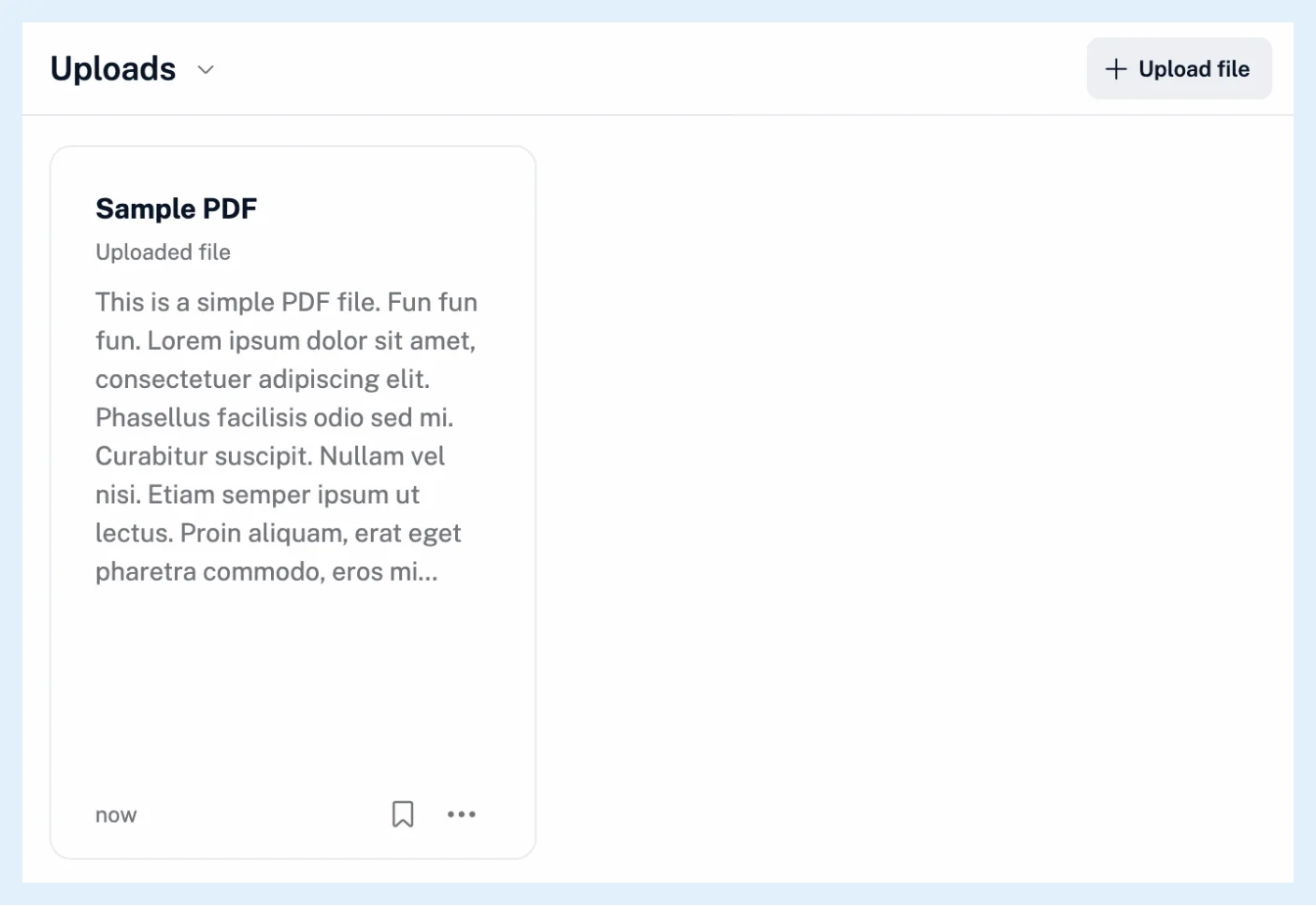
Click Saved in the tab bar, then Uploads in the sidebar, and click Upload file. Drop a file on the box or pick one with Browse files, or paste a link to a file under URL address. Inoreader converts the file into an article with its text, headings, tables and pictures. PDFs are read with text recognition, so scanned pages work too. The article takes the document's first main heading as its title, or the file name when there is none. The steps are in how to upload a file to Inoreader.
The files you can upload
PDFs up to 10 MB and 50 pages. DOC, DOCX, RTF, XLS, XLSX and MD files up to 5 MB each. TXT files up to 0.5 MB. See what file types you can upload.
Work with an upload
An upload is indexed for search, and the Search page can be limited to Uploads. Tag it, annotate it, or listen to it with text-to-speech, as with any article. Inoreader keeps the converted article, not the original file. See what happens after you upload a file.
Plans and limits
File uploads are a Pro feature. A Free account sees "Enjoy uploading documents with Inoreader's Pro plan!" with Upgrade now in Uploads. On Team plans, files uploaded on the team's Uploads page are shared with the team. See what Team file uploads are used for.
Can't find an answer? Contact support