How do I create an output feed?
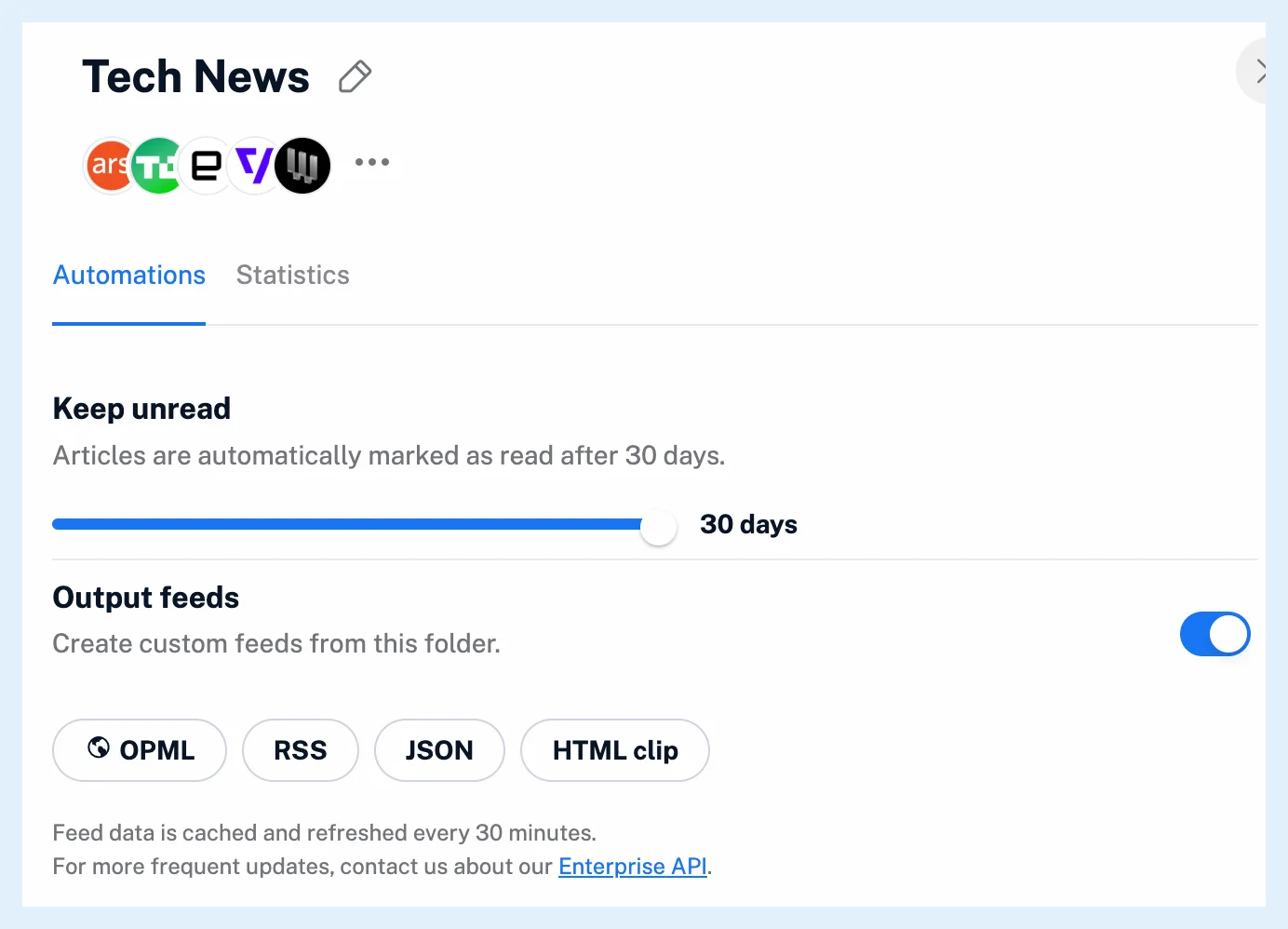
Right-click a folder or tag in the sidebar, choose Folder properties or Tag properties, and on the Automations tab switch Output feeds on. The RSS, JSON and HTML clip buttons, and OPML for a folder, then give you the addresses to share.
Create the feed
- In the sidebar, right-click the folder or tag you want to publish and choose Folder properties or Tag properties. Alt + I opens the properties of the open folder.
- On the Automations tab, switch Output feeds on.
- Click RSS or JSON to open the feed in a new browser tab and copy its address from there. For a folder, OPML gives its feed list.
- For a web page, click HTML clip, set the clip up and click Copy next to the Iframe code or the URL, see What are HTML clips used for?.
- Paste the address or code into the reader, tool or web page that should use it.
Switch it on from Preferences
Preferences > Content has a tab each for Folders, Tags and System folders, with an Output feeds column. Switch it on there and the RSS, JSON and HTML clip links appear in the row. The system folders include the Newsfeed, Annotations, Saved web pages, Uploads, Intelligence reports and All tagged articles. For a Team folder, a Team admin switches it on in the Team folder's properties.
Good to know
Anyone with the address can read the feed, so keep private folders off. The address carries the folder's or tag's name, and renaming it changes the address, so the old one stops working. Feed data is cached and refreshed every 30 minutes. To stop publishing, switch Output feeds off, and the address stops answering at once. A rule that assigns a tag to matching articles gives you a tag to publish as a curated feed. What are output feeds? explains what the feed contains, and the blog post Share your personal feeds and HTML clips shows an example.
Output feeds are a Pro feature, and on Free the RSS and JSON buttons carry an upgrade shield.
Can't find an answer? Contact support