How do I create a Web feed?
Click Add feed in the tab bar, choose Web feed, paste the page's address and click Load website. Pick one of the lists the AI tab suggests and click Follow feed, or switch to Manual, click a link on the page, check the preview and click Follow Web feed.
Load the page
- Click Add feed in the tab bar and choose Web feed.
- Paste the page's address in Paste website URL and click Load website.
Pick a list on the AI tab
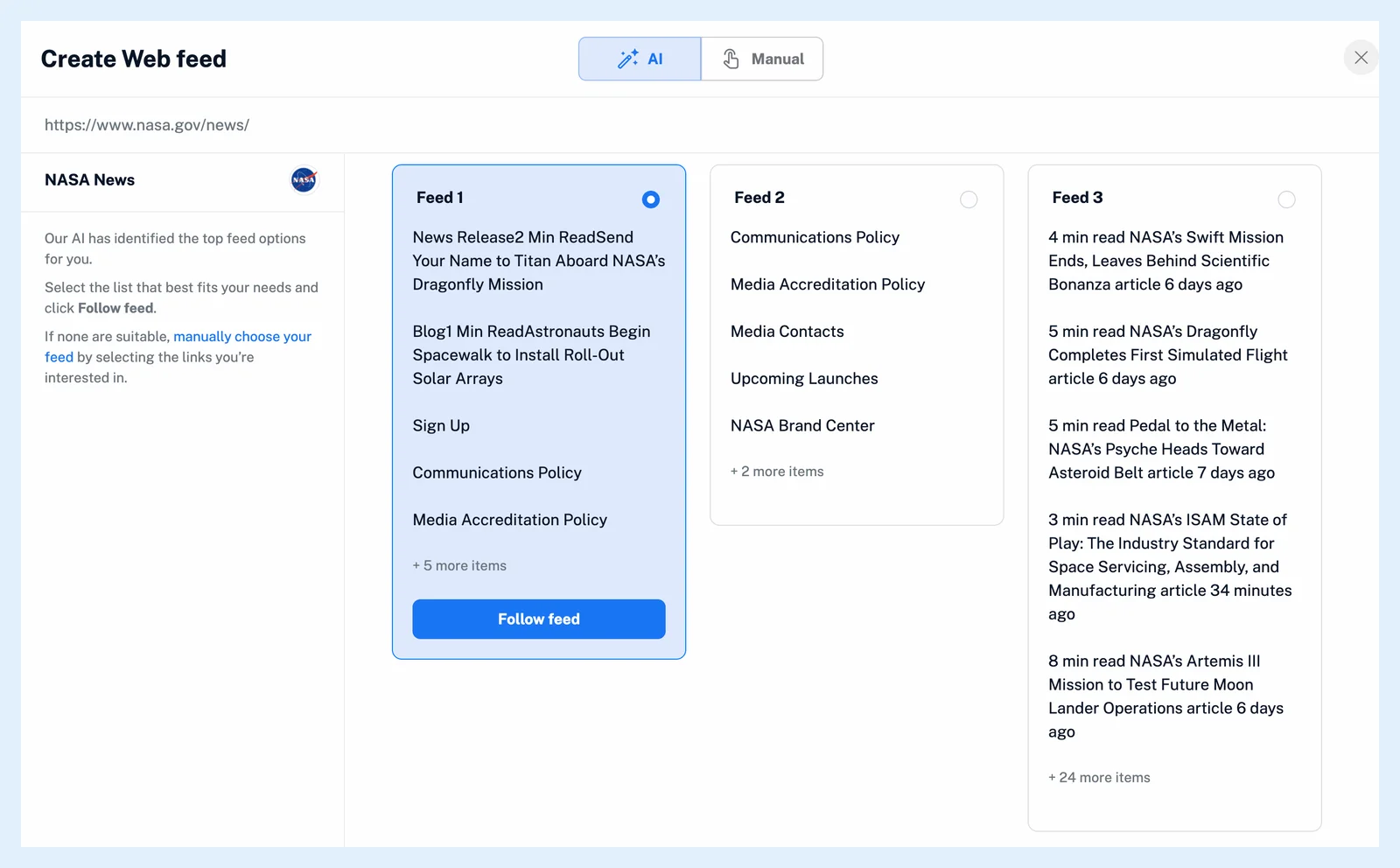
The builder opens on the AI tab, which shows the lists it found on the page as cards: Feed 1, Feed 2 and so on, each with its first links.
- Select the card whose links match what you want to follow.
- Click Follow feed on the card.
Pick the links yourself
When the AI tab finds nothing, it offers Switch to Manual tab. You can switch to Manual at any time.
- Click a link from the list you want on the page.
- Pick the matching list under Detected feeds. A preview shows its items with their titles and pictures.
- If new items appear at the bottom of the list instead of the top, turn on that option in the preview.
- Click Follow Web feed.
The gear icon opens Page settings for cookie banners, overlays and JavaScript, and Advanced options lets you paste a CSS selector. See what to do if a Web feed cannot read a page.
The first time you follow a Web feed, Inoreader explains that websites can change and stop the feed. Tick the checkbox in Follow Web feed and click Follow feed.
Read the new feed
The builder closes and the new feed opens in the reading panel and in your sidebar. It behaves like any feed (what Web feeds are), with Create rule and Feed properties on right-click. Add feed > Website offers Create Web feed when it finds no feed for an address (how to add a feed). To watch one area of a page for changes instead of a list, see how to create a Track changes feed.
Plans and limits
Web feeds are a Pro feature: 20 Web feeds and Track changes feeds together on Pro, a shared pool on Team plans. Follow any website, even without a feed describes them, and the post Improved Web feeds & Track changes shows the current builder.
Can't find an answer? Contact support