How do I use bulk actions?
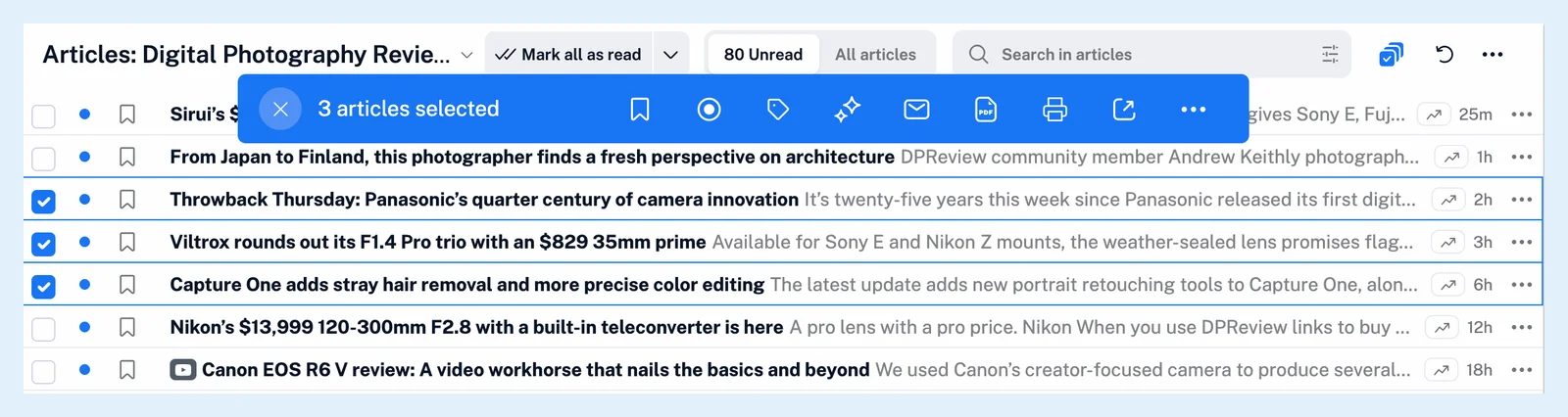
Open a feed or folder in List, Card or Magazine view, click the Bulk actions button in the header, tick the articles, then pick an action in the bar that appears above the list. In Column view, choose Enable select mode from the header's ⋯ menu instead.
Select articles and act on them
- Open a feed, folder or other article list in List, Card or Magazine view.
- Click the Bulk actions button, the checkbox icon in the header. In Column view, open the header's ⋯ menu and choose Enable select mode.
- Tick the articles you want, or click them. Shift+click selects every article between it and the last one you picked.
- Click an action in the bar at the top, such as Add tags or Save as PDF. What can I do with bulk actions? describes every button.
- Press Esc to clear the selection, and Esc again, or the X in the bar, to leave select mode.
Good to know
The bar counts the selected articles and takes up to 50 at a time: past that, a click selects nothing and the counter shakes, and a Shift+click range stops at 50. How many articles can I process at once with bulk actions? shows how to work in batches. On phones, select mode starts from the same ⋯ menu and the bar sits at the bottom of the screen. Expanded view has no select mode.
If the header shows no Bulk actions button, check Multiple select under Preferences > Settings > Article listing, which is on by default. Disable bulk actions in the bar's ⋯ menu switches it off. With Multiple select off, Ctrl+click, Cmd+click or Shift+click on an article opens it in a background tab instead of selecting it.
What are bulk actions? gives the overview, and How do I tag an article? and How do I create an Intelligence report? cover the two actions that open a dialog of their own.
Bulk actions are a Pro feature: a Free account can select articles, but the buttons are disabled and the bar shows "Bulk actions are only available to Pro users." with Upgrade now.
Can't find an answer? Contact support