How do I tag an article?
Open the article, click Add tags in its toolbar or press T, and type the tag's name. Pick a tag from the list, or press Enter to create a new one and assign it in one step.
Tag an open article
- Open the article.
- Click Add tags in the article's toolbar, or press T.
- In the Article tags menu, type into Search or create tags. The list narrows to matching tags, the article's own first.
- Click a tag to assign it, or press Enter on the highlighted one. The up and down arrows move the highlight. When no tag has that name, choose Create new tag followed by what you typed, and the tag is created and assigned at once.
- Press Esc or click outside the menu to close it.
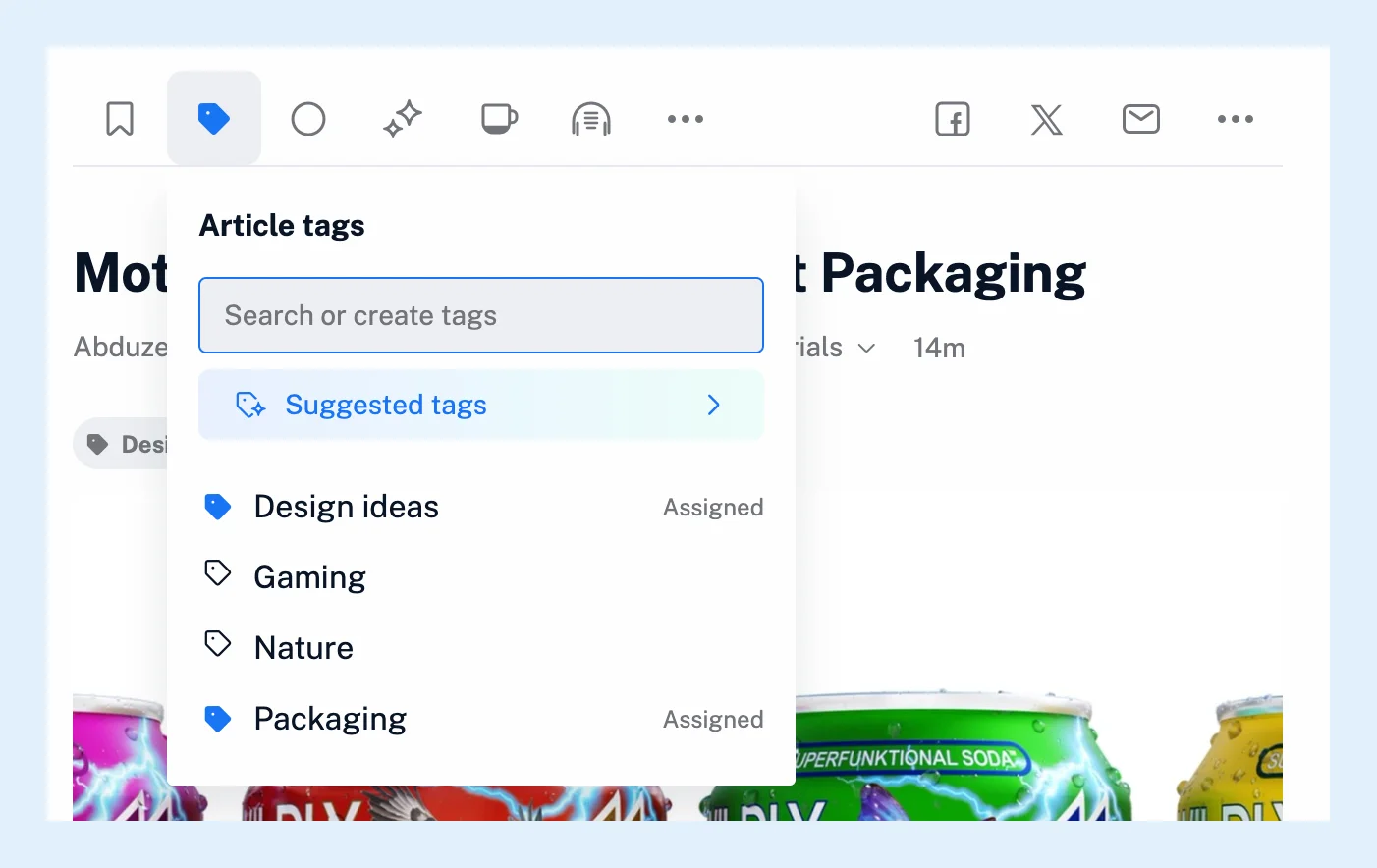
The tags you assign appear above the article's text, and the Add tags icon turns blue on a tagged article. To remove a tag, click it again in the menu, where it shows Remove, or click the x next to it in the article. Where to find your tagged articles shows the tag's list.
Tag from the article list
To tag without opening the article, turn on Tags button under Preferences > Settings > Article listing > More controls, and every article in the list shows the button.
With Pro, you can tag several articles at once: tick the checkboxes that appear when you hover over articles in the list, and click Add tags in the actions bar that appears. The same menu tags all of them.
Let Inoreader suggest or assign tags
With Pro, Suggested tags at the top of the menu asks Inoreader for tags that fit the article's text, chosen from the tags you already use. Click a suggestion to assign it. A rule, also Pro, with a keyword condition and the Assign tag action tags every matching article as it arrives.
Plans
Tagging by hand works on every plan. Bulk actions, suggested tags and rules are Pro features. On Team plans, the menu also offers Create new Team tag, shared with the whole team. The Folders and tags feature page and the video give an overview.
Can't find an answer? Contact support