How do I get a notification when a matching article arrives?
Create a rule that watches a feed, a folder or your whole account and give it the action Push mobile notification, Show desktop alert or both. The push reaches the Inoreader app on your phone, and the desktop alert appears in your browser while Inoreader is open in a tab.
Notifications come from rules, so there is no switch on the feed itself, and the same rule can also email the article or call a webhook. What actions can rules perform? lists them all.
Create the rule
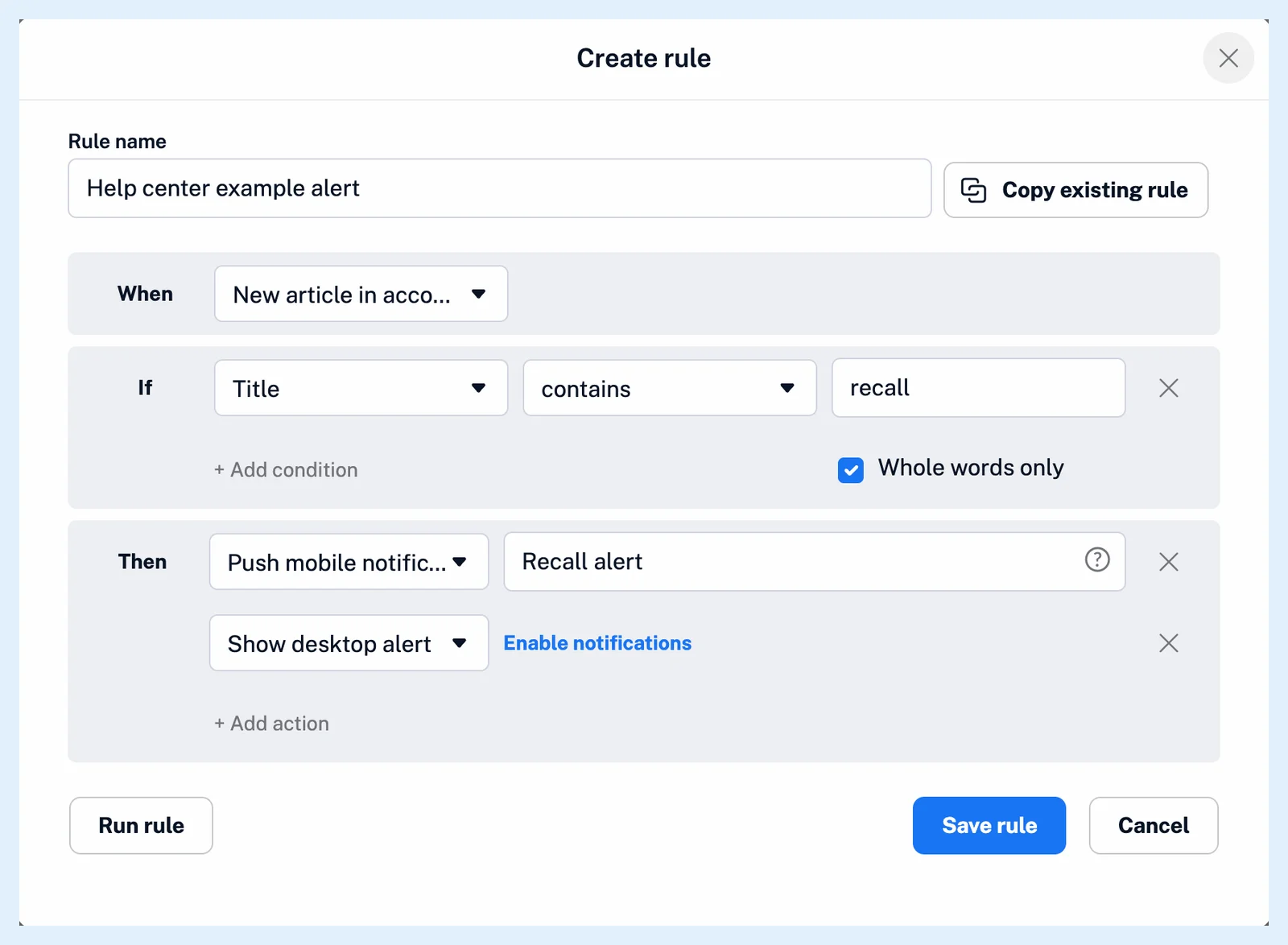
- Click Automate in the tab bar, then Create rule, or start from one of the other places a rule can start from.
- Type a Rule name and pick the trigger under When: New article in account, New article in folder or New article in feed.
- Click + Add condition and enter the words an article must contain. Select Whole words only so that "launch" doesn't match "launcher".
- Under Then, click + Add action and choose Push mobile notification in the new row. Add a Prefix such as "Recall alert" to start every notification with the same words.
- Click + Add action again and choose Show desktop alert in the next row. If the row shows Enable notifications, click it and allow notifications when the browser asks.
- Click Save rule.
Receive the notifications
A push goes to every phone and tablet where you're signed in to the official Inoreader app for iOS (version 3.3 or later) or Android (3.5 or later) with notifications allowed, and tapping it opens the article.
The open Inoreader tab shows a desktop alert when it checks the server, every 5 minutes on Pro, and clicking the alert opens the article. Keep Inoreader open in a tab and work elsewhere: alerts appear while you're not looking at Inoreader. Why are notifications not arriving? lists what to check when one doesn't.
A notification follows the feed's next check, at least hourly for an active feed with a Pro follower and every 10 minutes for a boosted feed.
Run rule also notifies you of every existing article it matches, so check the rule before you run it.
Send one article to your phone
On any plan, open an article's menu, choose Send to device and pick one of the phones and tablets signed in to the app.
Push notifications and desktop alerts from rules are Pro, with 30 rules included, while Send to device works on every plan.
Can't find an answer? Contact support