What is the reading panel?
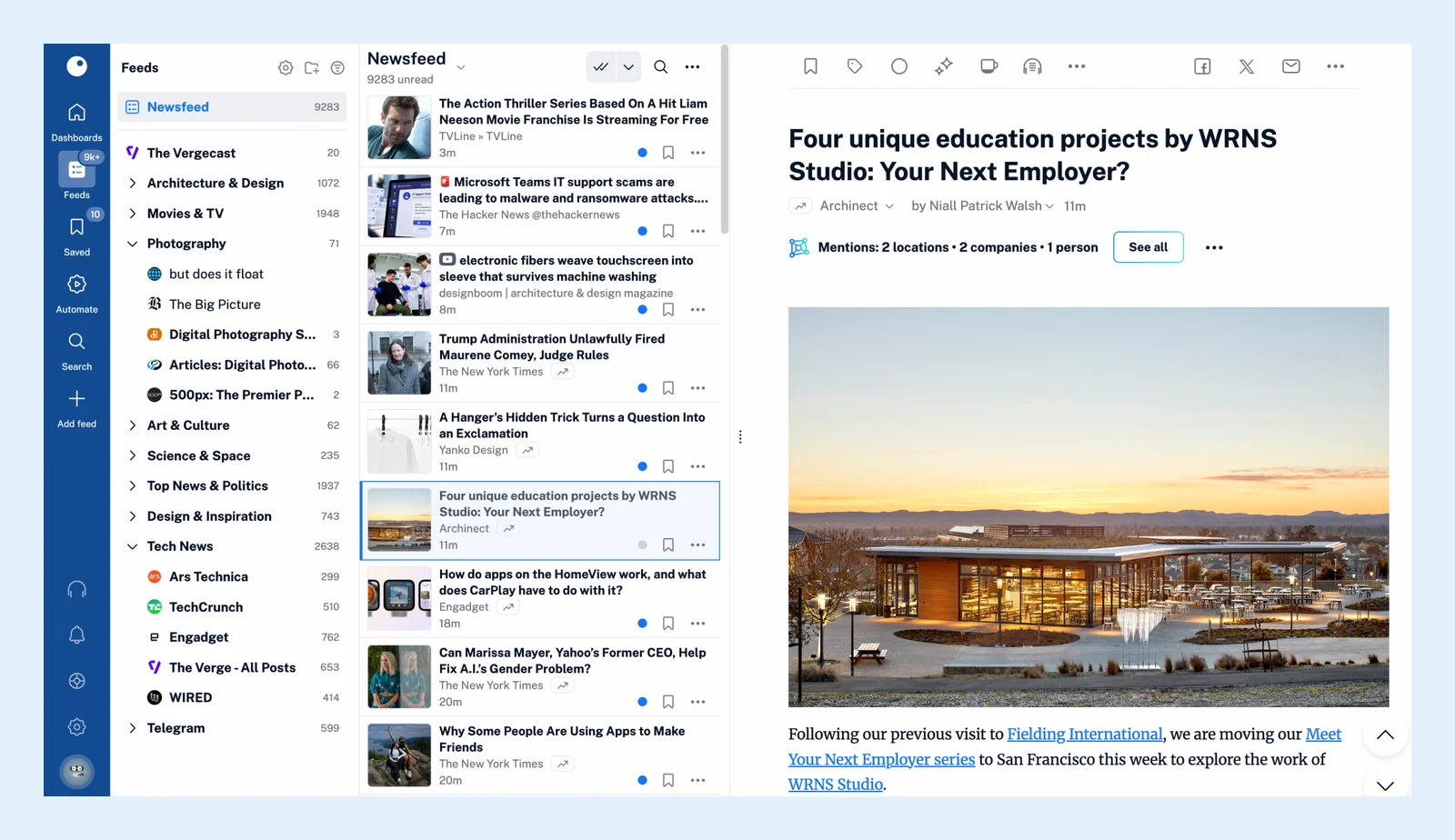
The reading panel is the large area to the right of the sidebar where everything you open is shown: the article list of a feed, folder, tag or search, the article itself, a dashboard or a settings page.
It's the largest of the three areas of the interface.
The header
The top of the panel names the section you're in and holds its controls: the Unread and All articles switch (Shift + 1 and Shift + 2), a search box for the current section, Mark all as read with a menu that marks only the articles older than a day, two days, three days, a week or two weeks, Refresh list (R) and the More menu (three dots), which holds the Layout, the Sorting by Newest first, Oldest first or Magic and the Grouping by feed or by date. The header stays put while you scroll. The sorts are explained in What sorting options are available?
Layouts
List (1) shows one line per article and expands the one you click in place. Expanded (2) shows every article in full, one under the other. Column (3) splits the panel into the list on the left and the open article on the right. Card (4) and Magazine (5) show tiles with pictures and open an article in a window over the list. Each layout is described in What layout options are available?, and you can customize how articles are displayed and give different feeds different layouts. The video shows them in use.
Read an article
An open article has buttons for Read later (F), Add tags (T), Mark as read or Mark as unread (M), Summarize, Load full content (W), Translate article (Q) and Share article, with the rest in the More menu. On Team plans Share with Team (S) is there too. Move through the list with J and K, open or close the article with O or Enter, open the original page in a new tab with V, and change the text size with + and - (0 resets it).
Press H or ? at any time for the full list of keyboard shortcuts.
Column view
Until you pick an article, the right half shows a note asking you to select one from the list. The list and the article scroll independently, so you can keep your place in both.
Can't find an answer? Contact support