Can I customize how articles are displayed?
Yes, in three places. The More (three-dot) menu at the right of the header sets the Layout, Sorting and Grouping of the feed, folder or tag you're reading, Preferences > Settings > Article listing holds the defaults for everything else, and Article layout & text in an open article's More menu sets the font, size, line height and width of the text.
Change one feed, folder or tag
- Open the feed, folder or tag.
- Click the More (three-dot) button at the right of the reading panel's header.
- Pick a Layout (List, Expanded, Column, Card or Magazine), a Sorting (Newest first, Oldest first or Magic) and a Grouping (None, By feed or By date). The same menu has Show saved articles first and Open original webpages.
Inoreader remembers the choice for that feed, folder or tag, so different feeds can use different layouts. A choice made on a folder also applies to every feed in it. The settings are stored on your account and apply in every browser you sign in on the web. The layouts, the sorting options and grouping have articles of their own, and the video shows the menu in use.
Change the defaults
- Open Preferences (Alt + P) > Settings > Article listing.
- Under Default settings, choose Layout, Sorting, Show in feeds, Show in tags, Show saved articles first and Open articles.
The defaults apply to every feed and folder without a choice of its own. A new account starts with Card view, newest first, unread articles in feeds and all articles in tags.
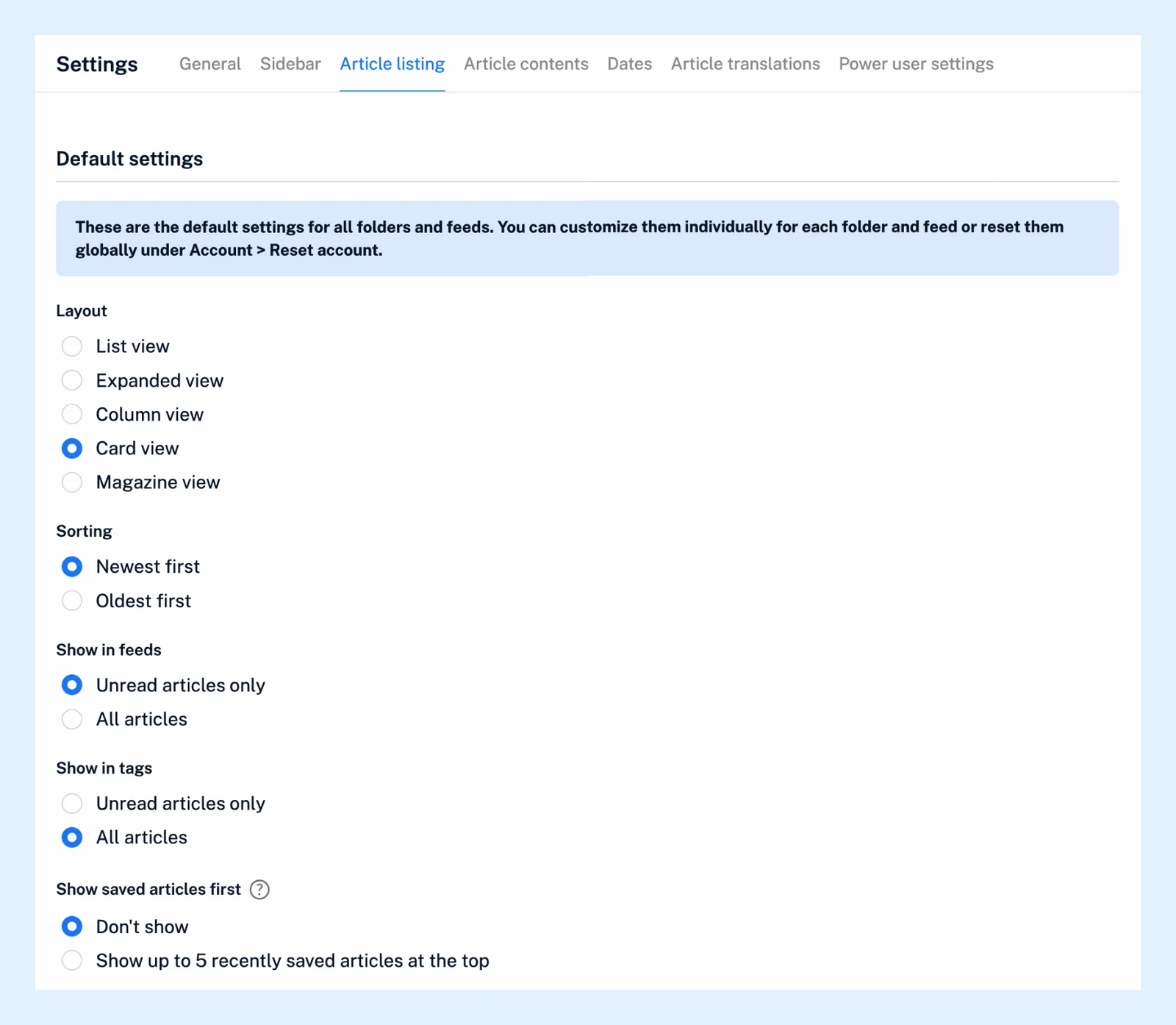
The same tab has More controls (the Tags button, Multiple select and others), the List view options (Show titles only, Auto collapse, Auto scroll, Density) and the Column view options (Column view thumbnails, Density). The Article contents tab sets Images, Highlight keywords and Original style, the Dates tab the Date format and Time zone. Preferences > Account > Reset account clears your per-feed choices with Reset custom view styles, Reset custom sorting and Reset custom grouping.
Change the article text
- Open an article and click its More button.
- Choose Article layout & text and set Font, Font size, Line height and, in List, Expanded and Column, the Layout of the article: centered, left aligned, or left aligned with full-width content.
The settings apply to every article you open. The keys + and - change the font size and 0 resets it.
Plans
Layouts, grouping and the preferences are on every plan. Magic sorting and Custom CSS are Pro features.
Can't find an answer? Contact support