How do I create an automated report?
Go to Automate > Automated reports, click Create automated report and walk through four steps: source, schedule, prompt and headline. Each run saves a new report under Saved > Intelligence reports.
Create the report
- Click Automate in the tab bar and choose Automated reports.
- Click Create automated report.
- Enter a Report name, choose the source under Select source, set Maximum number of articles and click Continue.
- Under Repeat, choose Daily or Weekly with its day, pick the Report time and click Continue.
- Click a prompt or type your own, click See preview, then click Continue.
- Choose the headline option and click Save automated report.
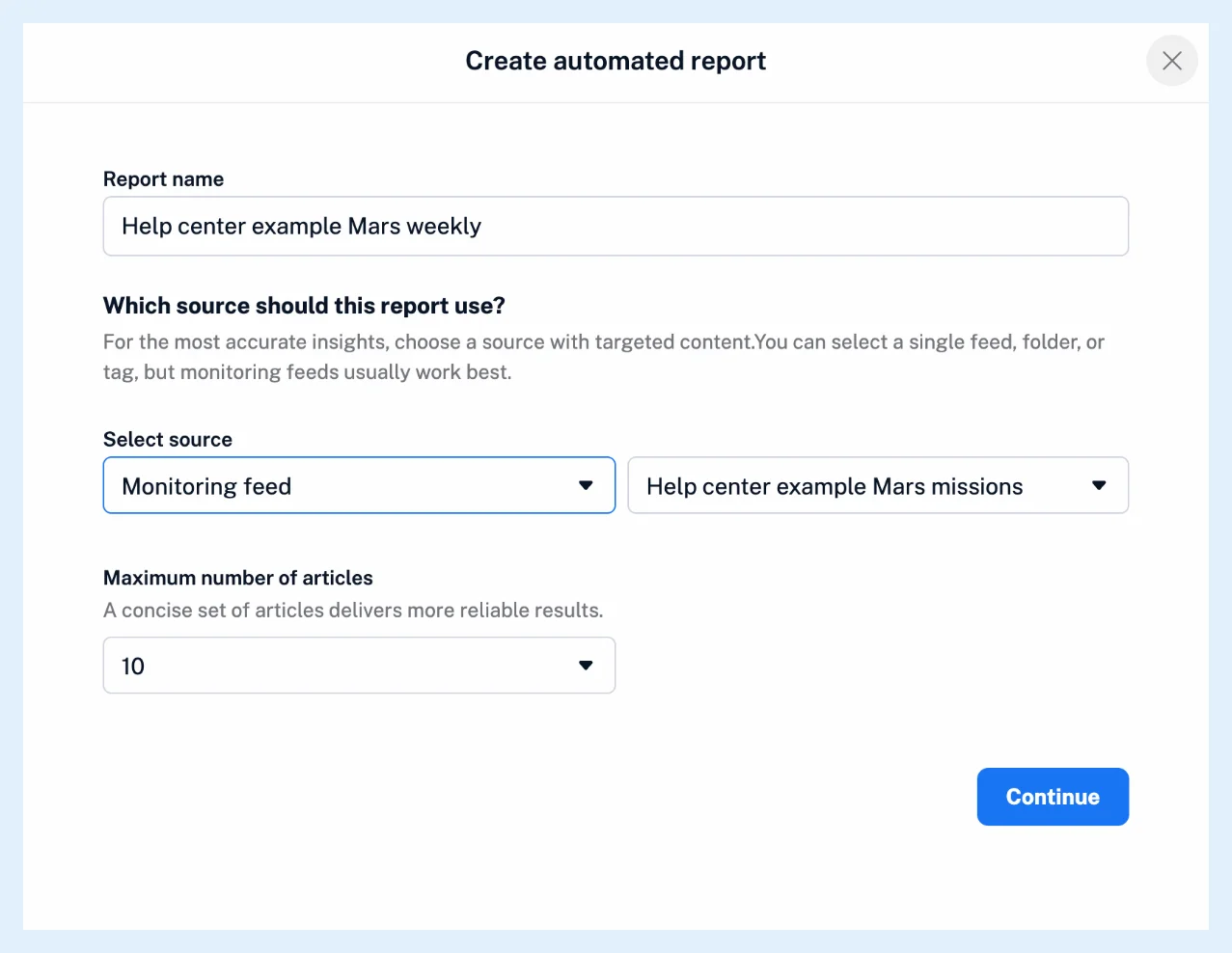
Pick the source and the schedule
Monitoring feeds usually work best as a source, so create a monitoring feed for the topic first. Maximum number of articles goes from 10 to 50, and the Report time is in your account's time zone, with the first run at the next matching hour.
Write the prompt
Click a prompt in the Prompt assistant or type your own question. See preview opens a Report preview built from the newest articles of the source and uses Intelligence tokens.
A run reads only the articles of the last day or week, so a weekly report can come out shorter than its preview.
Choose the headline
Generate a headline for each report based on the included articles lets the AI name each issue. Use a predefined headline template builds the name from {source_name}, {report_date} and {report_number}: the template "{source_name} from {report_date}" gives "Green energy news from Nov 18, 2025".
Manage the report later
The row's ⋯ menu has Edit report, Clone report and Delete report, and its switch pauses or resumes the report. Each run uses Intelligence tokens unless you use your own API key. To get every report by email, create a rule with the trigger New Intelligence report and the action Send to email. See what automated reports are, a weekly overview of a monitored topic and the blog post on automated reports.
Plans and limits
Automated Intelligence reports come with the Intelligence reports add-on on Pro and Custom plans or a Team Intelligence plan, and without it the page shows the add-on offer.
Can't find an answer? Contact support