Can I keep notes private?
Yes. Highlights and notes are private by default. Highlight text keeps a highlight to yourself, and in the note dialog the box Make visible to Team members starts unticked. Only Highlight for Team or a ticked box shares an annotation with your Team, and you can make it private again at any time.
Who sees what
A private highlight or note is visible to you only. Team members, admins and the owner see only the annotations shared with the Team. A shared one carries a Team badge on your picture, with the tooltip "Visible to Team members", in the dialog and in the article's Annotations panel, and on the pencil marker in the margin. Only you can edit or delete your annotations, and sharing sends no notification. Where can I find shared highlights and notes? shows where the shared ones appear.
Share or keep a note
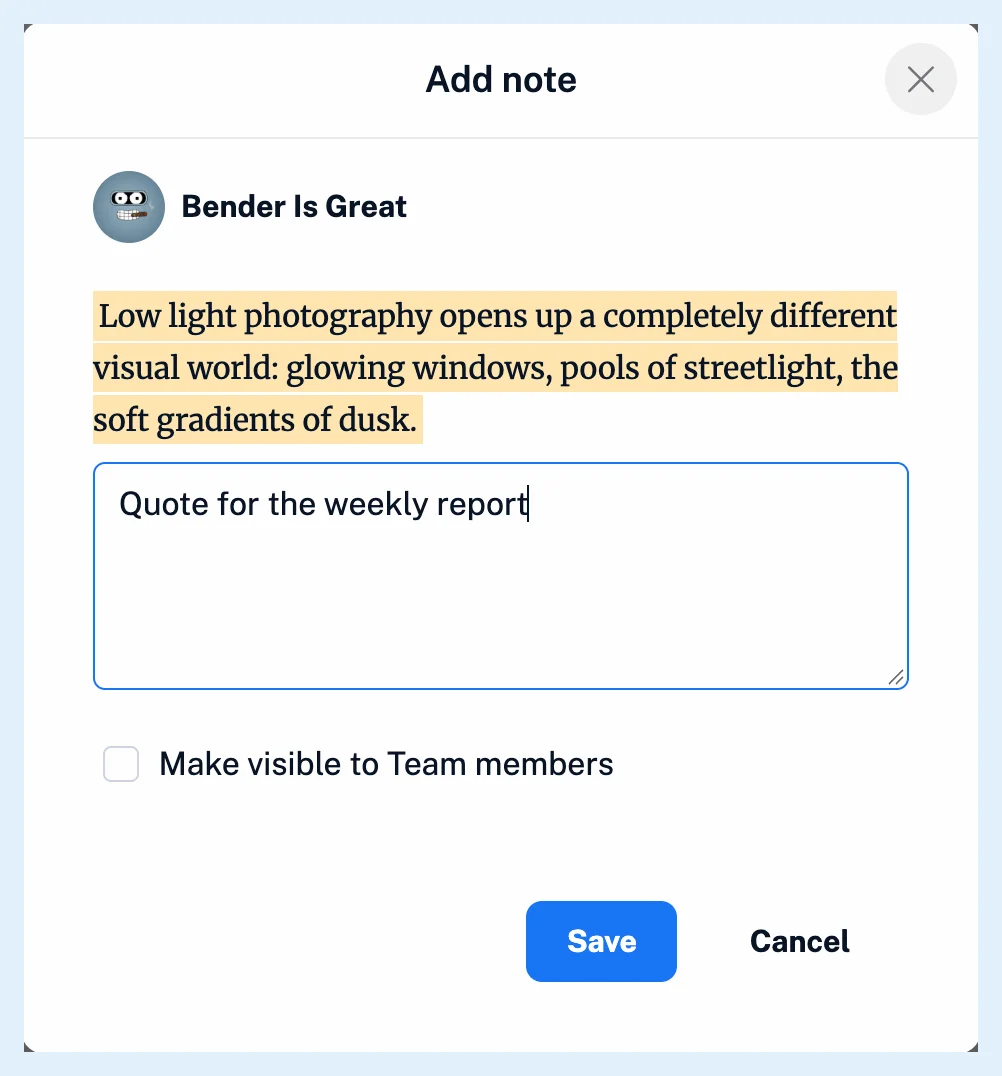
When you add a note, the dialog shows Make visible to Team members. Leave it unticked to keep the note to yourself, or tick it to share the note and its highlight with the Team. How do I add a note to a highlight? walks through adding notes.
Make a shared note private again
- Open the article and find your annotation in the Annotations panel above the text.
- Click Edit on it.
- Untick Make visible to Team members.
- Click Save.
Saving applies the box every time, so the same steps with the box ticked share a private note.
Comments are different: on an article shared in a channel, the members of the channel see them. What’s the difference between highlights, notes, and comments? compares the three.
Plans
Sharing highlights and notes with the Team comes with the Team and Team Intelligence plans. The feature page Annotations has an overview.
Can't find an answer? Contact support