Can I customize dashboard layouts and widgets?
Yes. Each dashboard has a layout of one, two or three columns, chosen when you create it, and you fill the columns with widgets: add them, set what each one shows, drag them into another order or column, and remove them.
Add a widget
- Open Dashboards and scroll to the bottom of the column where the widget should go.
- Click Add widget.
- In Add widgets, click a widget. The widgets are grouped under Getting started, Content and Data & usage, each with a short description.
- Set it up in the dialog that opens, where Refresh preview applies your settings to the live preview, then click Add to dashboard.
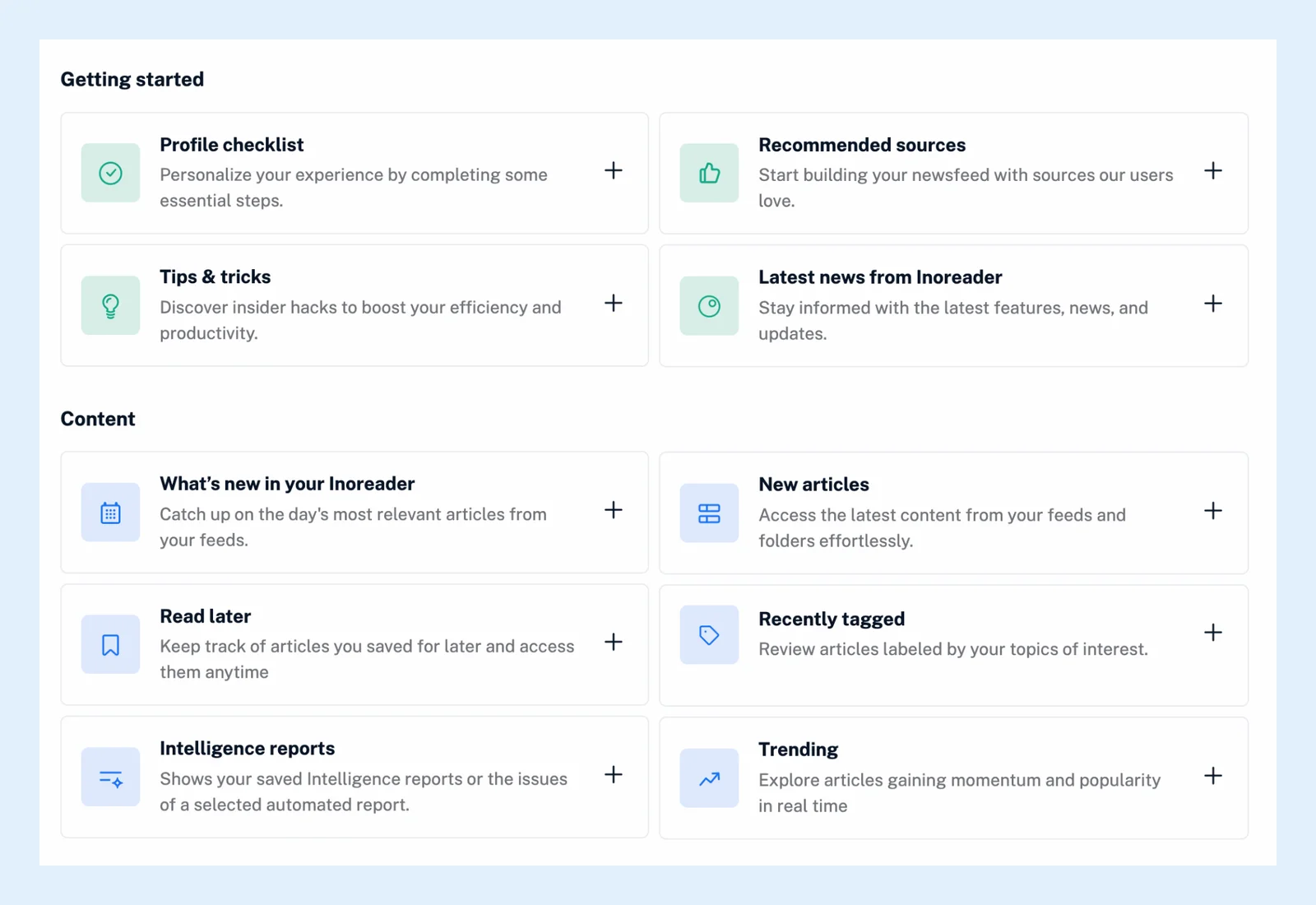
You can add the same widget more than once, for instance an article widget per folder. An article widget is titled with its source, and its settings are Source (your Newsfeed, a folder, a tag or a feed), View (Card view, Magazine view or List view), Hide source name, Number of articles to show (5 to 50), Automatic refresh (5 to 30 minutes) and Show only unread articles. Other widgets show your recently read, saved or tagged articles, your profile checklist, Intelligence reports, annotations, monitoring feed results, feeds with issues, inactive feeds, recommended sources and your reading statistics. What dashboards are gives the overview.
Change or remove a widget
Click the three-dot menu in the widget's header and choose Configure widget, change the settings and click Save settings, or Remove widget to take it off at once. The header also has a Collapse arrow (Inoreader remembers which widgets you collapsed) and a Refresh content button that reloads the widget.
Move a widget
Drag it by the strip at the top of its header to another place or column. The new order is saved. Then you can set a dashboard as your start page.
Pick a layout
The layout is picked in the Create dashboard dialog under Choose layout: Single column, Two columns (a wide left column and a narrow right one) or Three columns. For a different layout, create a new dashboard and add your widgets there. The video shows both.
Plans
Dashboards and widgets are on every plan. A Team dashboard you can't edit shows no Add widget button and no widget menu.
Can't find an answer? Contact support