How do I make content available offline?
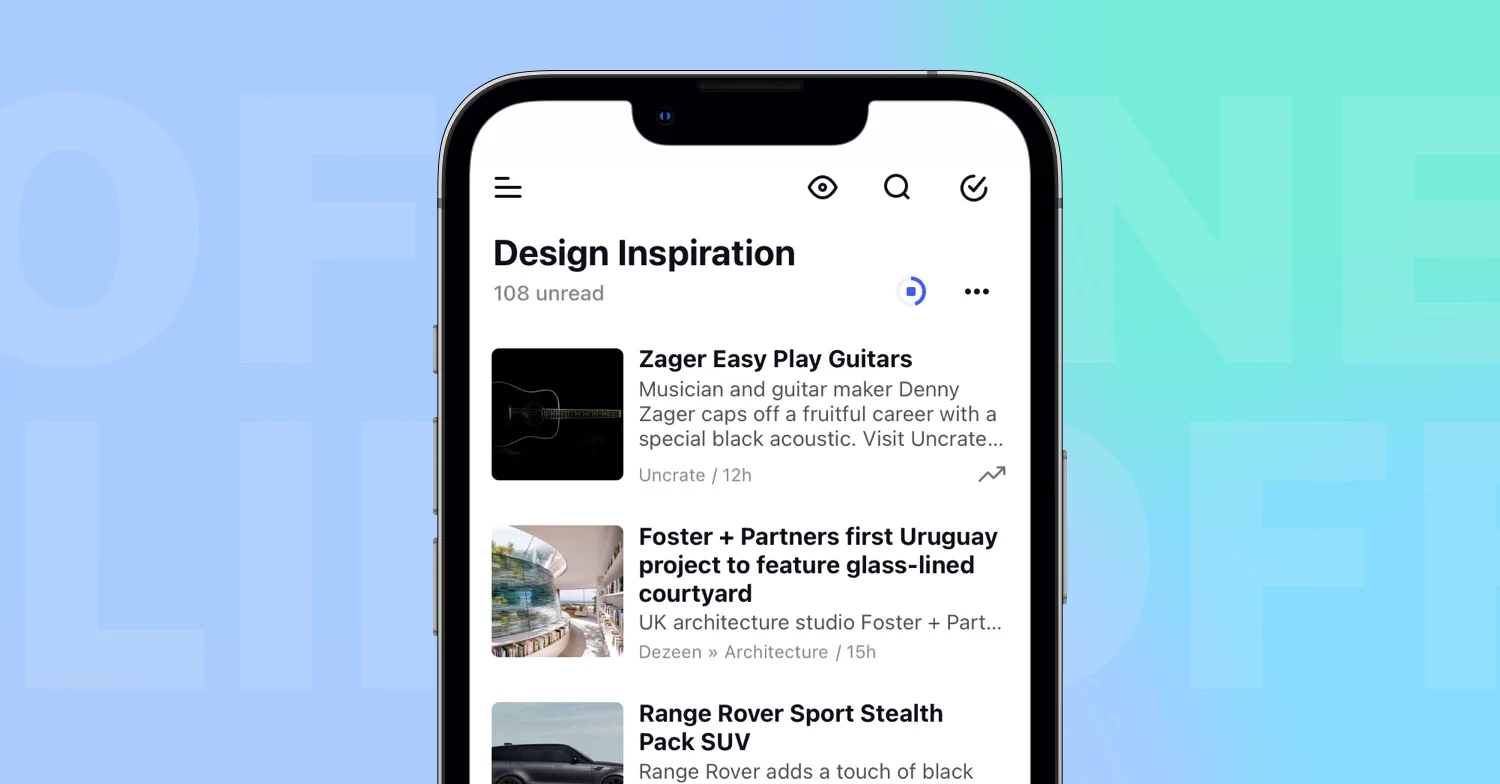
In the iOS or Android app, open the feed, folder, tag or Saved section and tap the offline icon at the top of its article list. The section is made offline at once and starts downloading.
To choose the options first, use Make offline in the section's menu instead. Offline mode is a Pro feature of the apps alone, as What is offline mode? explains.
Make a section offline on iOS
- Open the feed, folder, tag, Annotations or Saved web pages.
- Tap the offline icon at the top of the article list. The section is made offline and starts downloading.
- To change the options, tap the icon again or choose Offline settings in the ⋯ menu above the list, then tap Done.
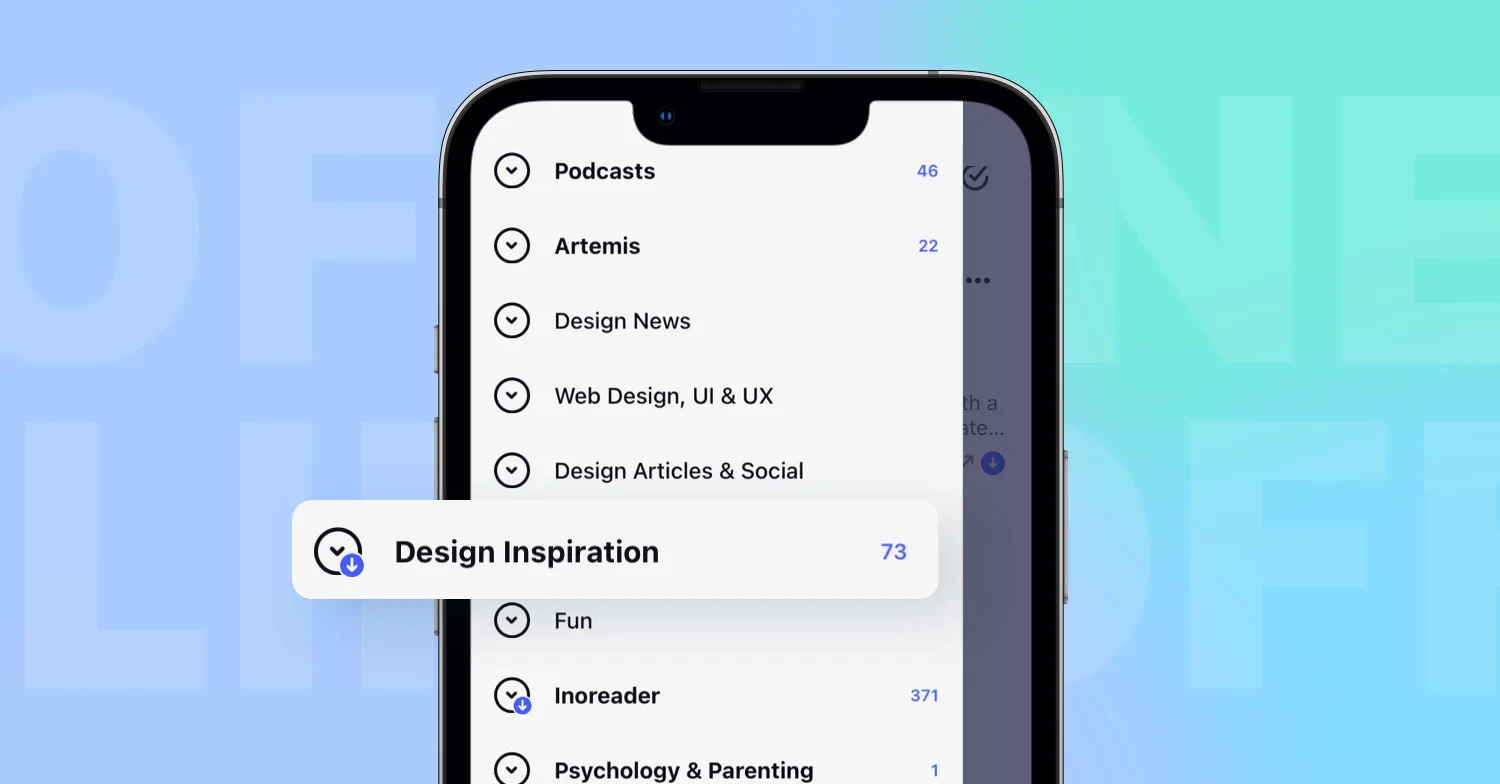
Swiping a folder in the sidebar also opens a menu with Make offline.
Make a section offline on Android
- Long-press the feed, folder, tag, Annotations or Saved web pages in the sidebar and tap Make offline, or open it and tap the offline icon at the top of the article list.
- Set the switches and Maximum articles.
- Tap the back arrow to save. The download starts.
Choose the options
The Offline settings screen has the switch Offline mode enabled and the choices Download only on WIFI, Download only unread articles, Download images, Download full content and Maximum articles, described with their defaults in What can I make available offline?. A section made offline from the icon at the top of the list uses those defaults with Download only unread articles off.
Before you go offline, open the section once while you're online so it refreshes, and check that the articles carry the offline icon.
Keep the download fresh
Opening an offline section while online refreshes it. Offline folders and tags also refresh on their own, on iOS when the app comes to the foreground and on Android at the Download interval set under Settings > Miscellaneous > Offline settings, where Force synchronization starts a refresh at once.
Turn offline mode off
Open Offline settings for the section, switch off Offline mode enabled and save.
What you read and tag while offline reaches your account later, see Do offline changes sync automatically later?, and Why can't I read an article offline? helps when an article won't open. Offline mode is included in Pro and higher plans.
Can't find an answer? Contact support